ChargePoint Receipt Generator
Record the session ID, charge-point location and energy delivered. Add the session charge and payment references, review the preview, then save a PDF or PNG.
Last updated
Separate the charging session from the payment reference
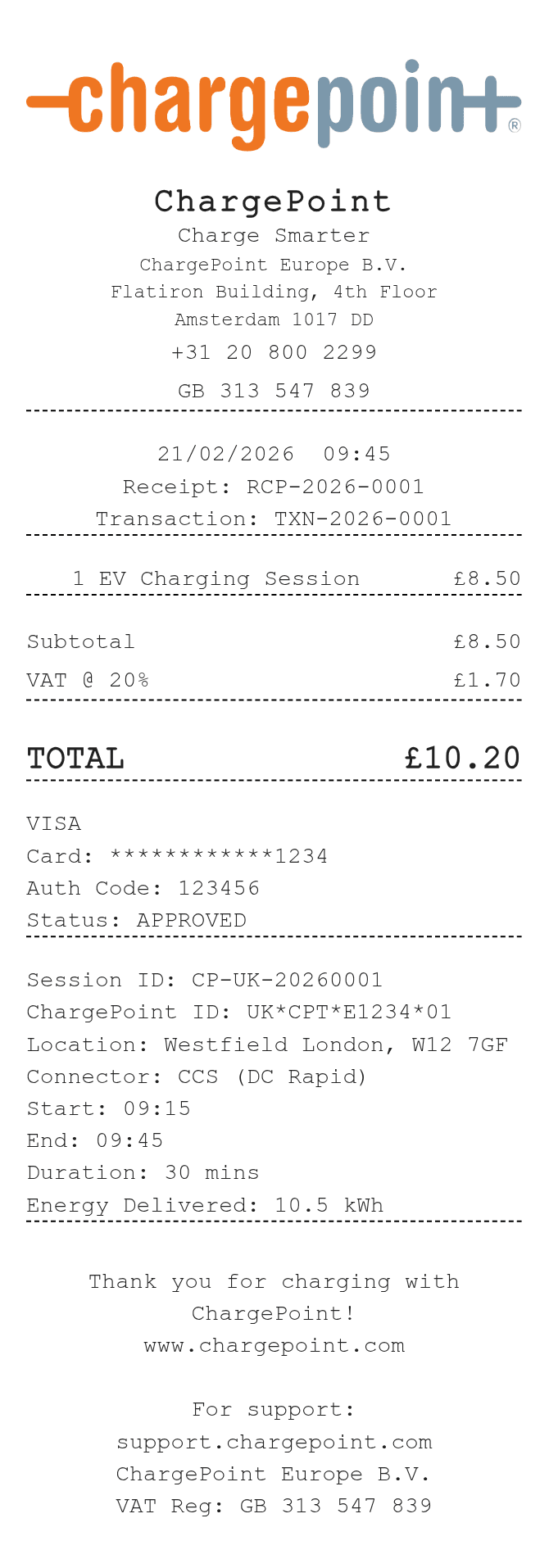
This ChargePoint template includes a Session ID and a ChargePoint ID as well as receipt and transaction numbers. Use the session ID for the charging event and the charge-point ID for the equipment. Location, connector, time and energy entries help distinguish repeat visits to the same site.
What a ChargePoint session receipt shows and why prices vary
On the ChargePoint network, each station owner or roaming partner decides how much it costs to use their stations. That is why two ChargePoint receipts from different sites can be built very differently. Owners can charge by the kilowatt hour, by the hour, with a flat fee, a minimum or maximum fee, or an overnight or idle fee, and some change the rate after the first hour or two. An overstay rate is time-based and applies after a grace period or maximum connection time, and a station time rate can apply while the car is connected whether or not energy is delivered.
ChargePoint can also add its own charges. A Service Fee is charged by ChargePoint rather than the station owner when a session starts. A Guest Fee applies when you start a session by tapping a contactless credit card without a ChargePoint or roaming partner account, and a Convenience Fee applies when Driver Support starts a session for a driver paying by card. At roaming partner stations, ChargePoint says you are always billed the price shown in the app at the start of the session, even if the station display differs slightly.
How to get a copy of a ChargePoint receipt
With a ChargePoint account, open the app, tap the Activity tab, choose the session and use the Share icon to send it as a PDF by email, message, AirDrop or print. The session detail screen shows the date, time, kWh, cost breakdown, payment method and station address. Monthly statements are at the bottom of Activity, and you can turn on Receipt ready alerts under Account, Notifications, Public Charging.
If you paid as a guest with a card, Apple Pay or Google Pay, use ChargePoint's receipt search and have the card details ready to verify the receipt is yours. For Apple Pay or Google Pay, look up the device's virtual card number in your wallet app. Sessions started with a roaming partner's RFID card are receipted by that provider.
What goes into this layout
| Section | Details |
|---|---|
| Session identity | Session ID and charge-point ID |
| Charging details | Location, connector, start and end times, duration and kWh |
| Amounts | Complete line charges and entered VAT percentage |
| Payment | Method, status and card references where needed |
| Receipt | Receipt number, transaction number and optional barcode |
Related receipt guides
Review identifiers before saving
- Enter the operator and station details for the charge.
- Copy the session identifier, timing and energy from your record.
- Enter each complete line charge; check the currency and VAT separately.
- Choose the payment method, inspect the full receipt and download.
FAQs
Official sources
- ChargePoint help with session receipts and invoices
- ChargePoint - Can I get an invoice or receipt for my charging session?
- ChargePoint - Pricing policies and fees
- ChargePoint - App price vs roaming station price
- IRS Publication 463, Travel, Gift, and Car Expenses (2025)