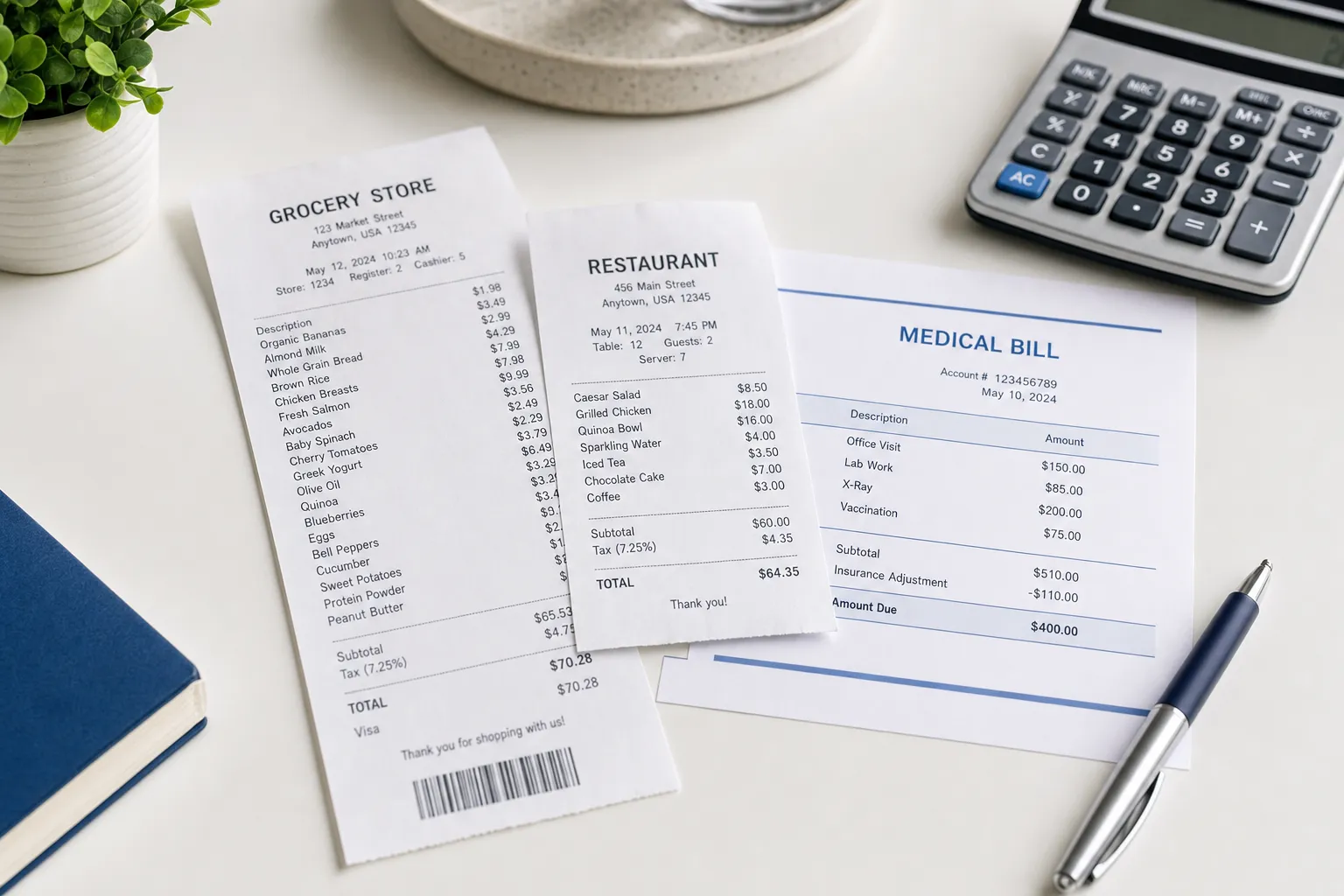
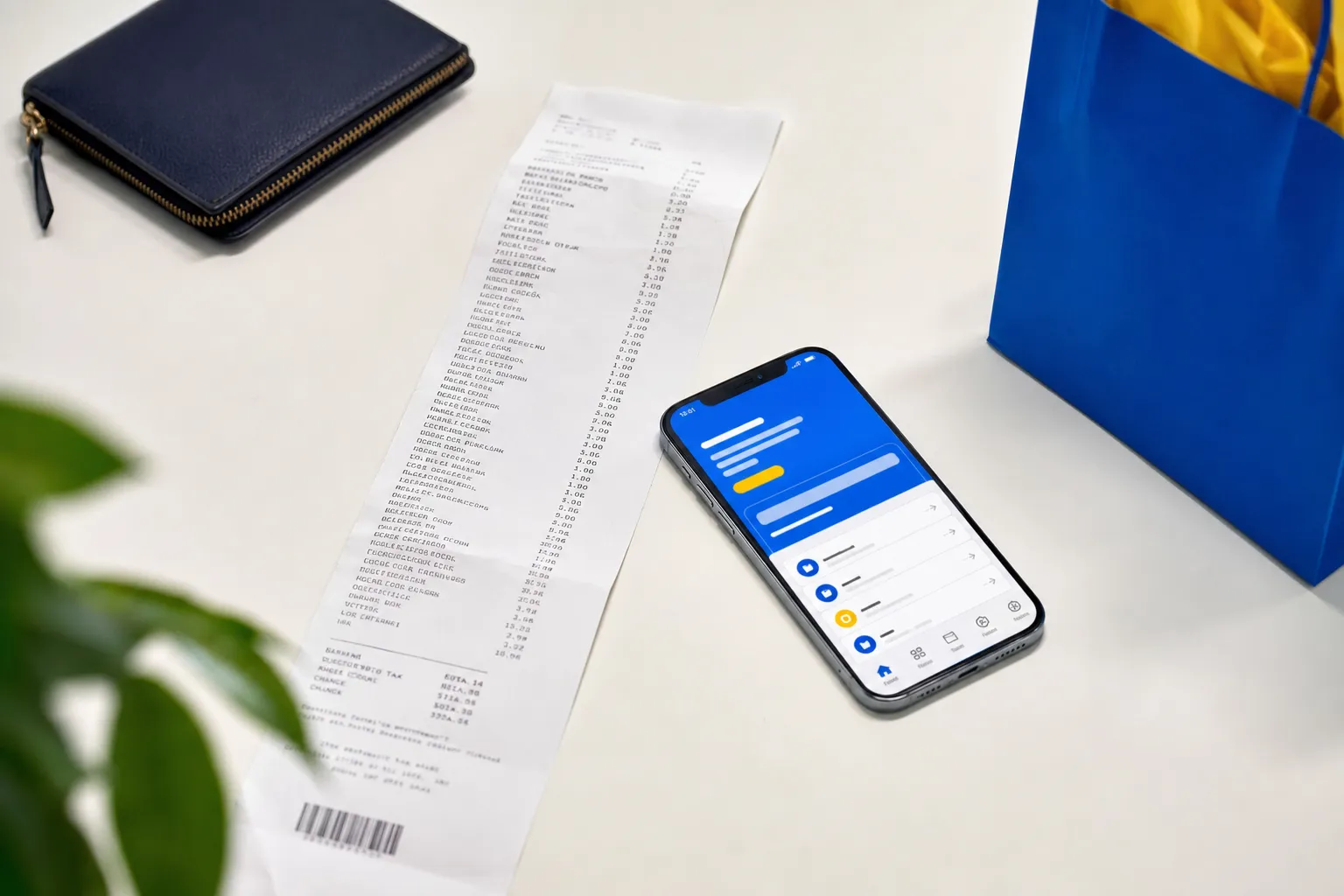
To review a long receipt, scroll to its last item, totals and footer in the preview, then find those same details in the downloaded file. Preview zoom helps you read small text or see more rows at once.
Try the 12-item example below in the Walmart editor. You can also use the preview zoom controls in editors such as Nike and McDonald's to inspect longer receipts.
Receipt width, preview zoom and file viewing
| Setting | What it changes | When to use it |
|---|---|---|
| Receipt width | The width of the exported receipt layout and its text wrapping. | Choose the intended output layout, such as 80mm or 110mm where offered. |
| Preview zoom | How large the receipt appears inside the editor. | Inspect text or see more of a long receipt on screen. |
| Viewer or print scaling | How another application displays or places the downloaded file. | Inspect the completed file or prepare a separate print job. |
Choose the receipt width for your intended layout. Then adjust preview zoom to read it comfortably. You can enlarge the preview while keeping the same export width.
Create a 12-item practice receipt
- Open the Walmart editor and use fictional details for this practice run.
- Rename the first item Demo item 01. Add rows with the row's + control until you have 12.
- Name the last row Demo item 12 — final row. Use short, different names for the rows between them so missing or repeated rows are easy to spot.
- Set every amount to 2.50, select X on each row and enter 8 in Tax%. Check subtotal 30.00, tax 2.40 and total 32.40.
- Scroll through the preview to the final row, then continue to the totals and footer. Check the displayed item count against the rows you entered.
The numbered rows help you spot a missing or repeated item. Keep the final-row label until you have checked your downloaded file.
Zoom and scroll to the footer
If the editor shows + and − preview zoom buttons, zoom out to locate the bottom and zoom in to inspect a small detail. When the enlarged receipt exceeds its preview area, scroll within that area. On a phone, swipe over the receipt and confirm you can reach the footer. If the whole page moves instead, continue until the preview is in view, then try the gesture over the receipt itself.
Keep scrolling past the last item to review totals, payment details and footer text. If you change the receipt width, review these areas again because the new width can change line wrapping and receipt height.
Download and compare a PDF and PNG
- Finish editing before downloading so you can compare both files against the same content.
- Open the arrow beside Download Receipt. Under PDF Format, choose the 80mm or 110mm entry, then click the main download button.
- Open the PDF and find Demo item 12 — final row. Check the totals and footer below it.
- Return to the same editor. Open the arrow, select the same width under Image Format, then click Download Receipt again.
- Open the full PNG at a readable size and inspect its bottom. Compare the last row and totals with the PDF.
Both formats can represent a long receipt, but a program may initially fit the entire file into a small window. Enlarge the view before deciding that its text is too small. Changing a viewer's zoom does not change the saved file.
Fix common preview and download problems
| What you see | Check next |
|---|---|
| The receipt is complete but tiny in the editor. | Use preview zoom where available. Keep the intended export width. |
| The preview's last item is visible, but the file's last item is missing. | Open the actual downloaded file, check its bottom, and compare the selected format/width. Retry once from the completed preview if the first file is incomplete. |
| The last item is absent from both preview and file. | Check that the row was added, its content remains in the form and you are inspecting the current receipt. |
| A long description or footer is clipped at the side. | Inspect that field at the selected width. Try a wider offered layout or a line break in a multiline field, then check a new export. |
| A file browser shows only the top of the PNG. | Open the image itself and scroll through its full height. |
| Repeated download clicks produce an error. | Let the current request finish. If a limit message appears, wait before retrying. |
If a problem persists, use Contact with the template name, selected width and format, and a description of the missing area. Include a short practice example such as the numbered rows above to help explain the problem.
See how to download receipt PDFs and PNGs for the width and format menu steps. For help with item, tax and payment fields, use the Walmart, Nike and McDonald's field guide.