Square Canada Receipt Template
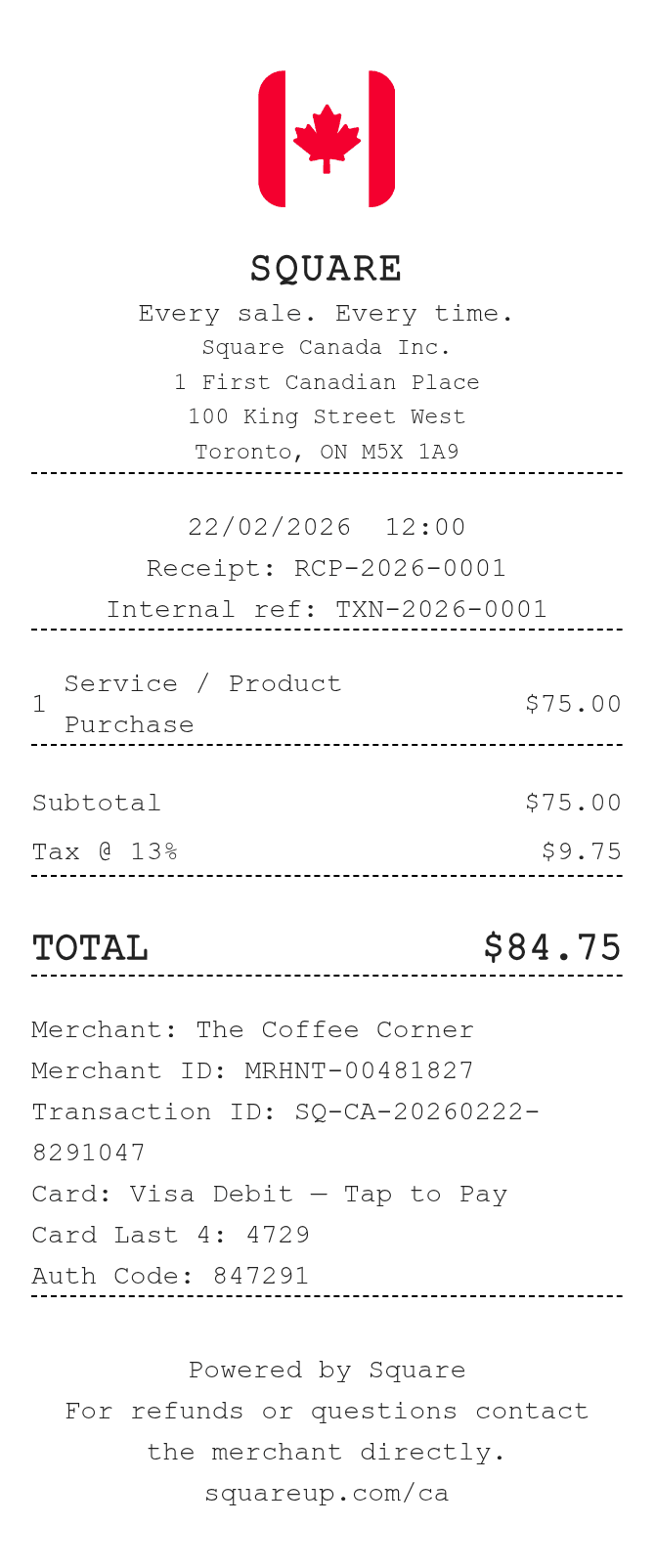
Create a CAD receipt layout with merchant and transaction IDs, purchase amounts and masked card details. Preview the total before saving a PDF or PNG.
Last updated
A Canadian merchant-payment record
The Canadian Square-style layout uses a merchant ID, transaction ID and card references to accompany the purchase rows. It starts in CAD and lets you enter the amounts and tax setting needed for your record. No Square account is connected, so references and status must come from information you already have.
What a Square Canada receipt shows
A Square receipt in Canada is issued by the business you paid, not by Square itself. Sellers can hand over a printed receipt or send a digital one by text message or email. Square says each receipt gives an itemized breakdown of whole number and decimal quantities, discounts and applicable taxes. Sellers can add a logo, business location, contact information, a return policy and custom text, and their phone number is included automatically. Brand color and item information appear only on digital receipts and invoices, not on printed copies. Each location can also set a preferred receipt language. If a seller adds no return policy, Square's refund guide says it is assumed there is no policy.
For business expenses, the GST/HST detail on a Square Canada receipt matters. The CRA says a claim for input tax credits under $100 needs the supplier's business or trading name, the invoice date and the total. From $100 to $499.99, the record must also show the GST/HST charged and the supplier's GST/HST registration number, and mark which items are taxable when exempt items are included. At $500 or more, add the buyer's name, a brief description and the payment terms. On or after April 1, 2025, the rate is 5% GST in Alberta, British Columbia, Manitoba, Quebec, Saskatchewan and the territories, 13% HST in Ontario, 14% HST in Nova Scotia and 15% HST in New Brunswick, Newfoundland and Labrador and Prince Edward Island.
How to get a copy of a Square Canada receipt
Ask the business where you paid. In the Square point of sale app, the seller opens Transactions, selects the payment and taps New Receipt to reprint it or resend it by email or text. Square notes that resending does not change your automatic receipt settings. Sellers can also choose Send Receipt on the payment in Square Dashboard, and they can search for a payment by card number, phone, customer name, receipt, notes or item.
For a refund, Square does not send the customer a notice when it finishes, so ask the seller for a refunded payment receipt if you need proof. Card refunds appear on your statement as SQ * followed by the seller's business name and type.
Fields in this version
| Section | Details |
|---|---|
| Merchant | Merchant name and merchant ID |
| Transaction | Transaction ID and authorization code |
| Card | Card type and last four digits |
| Purchase | Editable descriptions and complete line amounts |
| Currency and tax | CAD default with an editable tax percentage |
Review the receipt before export
- Enter the merchant name and ID, then copy the transaction references from your own record.
- Add purchase descriptions and full line amounts. The quantity column does not multiply those amounts.
- Check the tax percentage and final total; the page does not choose a provincial rate automatically.
- Review the masked card details and receipt date, then download the document.
FAQs
Official sources
- Square Canada: print and send receipts
- Square Canada - Print and send receipts
- Square Canada - Customize receipts
- Square Canada - Process refunds
- CRA - Input tax credits
- CRA - GST/HST rates